Analytics
Updated
Where: Analytics
- On a computer, click the chart button on the left bar ("Analytics"). On a phone, open the three-dot menu and tap "Analytics".
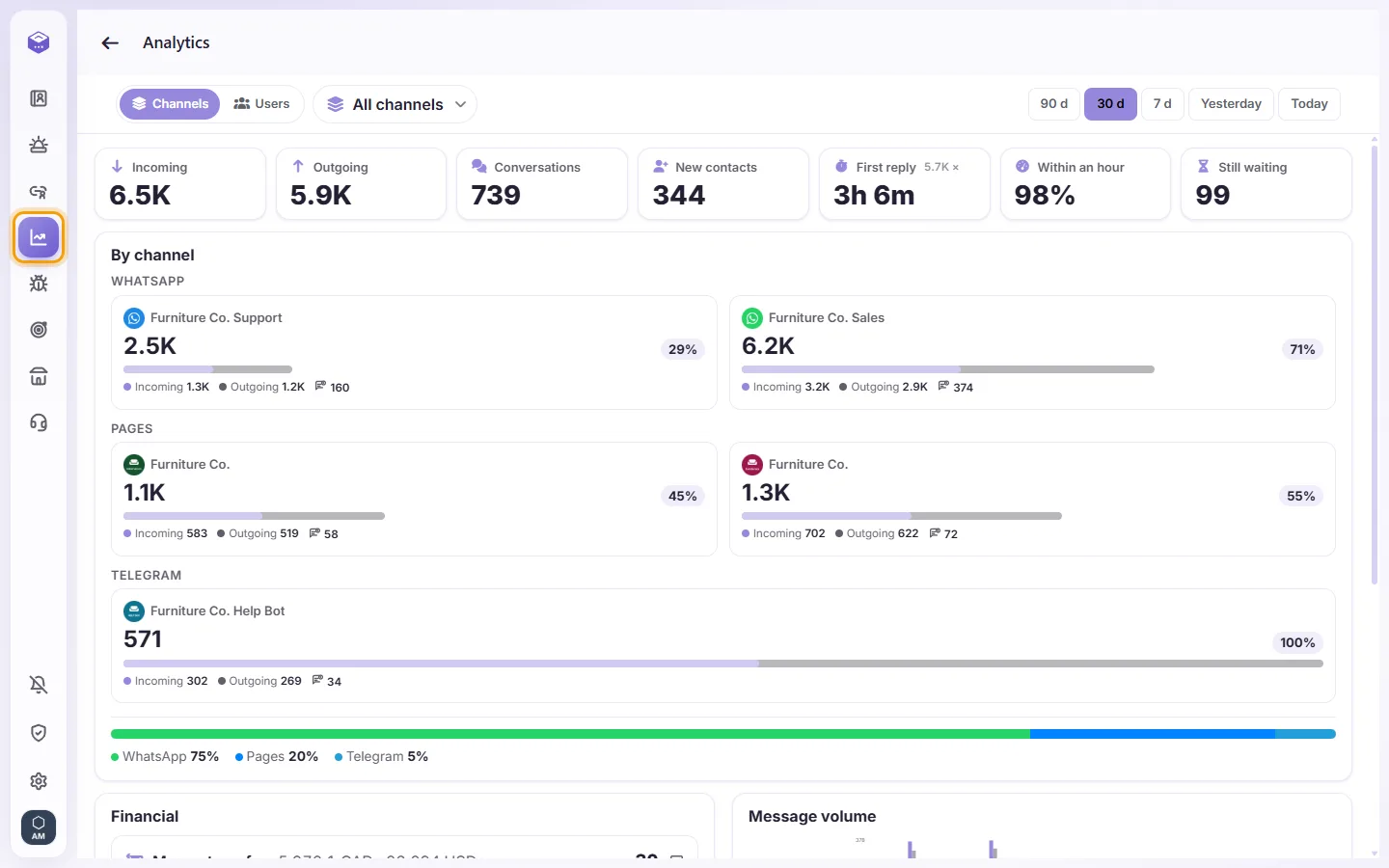
- To return, use "Back to chat".
Who can see it
Only users whose admin has given them access to Analytics. Each user sees numbers only for the conversations and numbers they are allowed to see. The "Financial" part needs a separate permission.
What it shows
1. Choose a period: 90 d, 30 d (the default), 7 d, 2 d or 1 d. "1 d" means the last 24 hours.
2. Choose "Channels" or "Users", then "All channels" or one number, or "All users" or one user.
3. Number cards:
- "Incoming" and "Outgoing" messages
- "Conversations"
- "New contacts"
- "First reply": the average time to the first answer
- "Within an hour": the share answered within an hour
- "Still waiting"
Large numbers are shortened (for example 1.2K). Hover to see the full number.
4. "By business number": one card per number, if you have more than one.
5. "Message volume": a trend chart. "Messages by channel": a ring chart.
6. "Financial": totals of money transfers and bank cheques found in receipt images customers sent, per currency. These amounts are read automatically from images, so check them. Click a row to see the receipts. For each receipt you can give a thumbs up or down, "Correct the value", or remove it with a reason, and "Undo".
7. "By user": a table with "User", "Sent", "Conversations", "First reply", "Within an hour", "Still waiting" and "Done". Click any column title to sort, and click again to reverse. Click a person to open their own dashboard. Separate rows show the "Phone app, API or system" and "AI agents".
Chats between colleagues and the Team room are not counted.