API keys
Updated
Where: Settings > Integrations > API keys
What it is for:
"Give an external program its own key to send through SyBox — the WhatsApp token never leaves the server, and a leaked key is revoked on its own." Your ERP, point of sale or desktop program uses a SyBox key. It never needs your real WhatsApp credentials.
What a program can do with a key (described on the public Developer Documentation page):
- Send WhatsApp messages from your own connected number. It uses the same request format as Meta's WhatsApp Cloud API, so a program already written for that only needs a new address and a SyBox key. Text, templates, images, documents and interactive messages all work. Answers and errors come back exactly as Meta gives them.
- File a case from your own system, for example a complaint recorded in your ERP. The customer must already exist in SyBox.
- Import SMS from a phone into the inbox.
Who can open it: the main admin, and team members with the "Manage WhatsApp numbers" permission.
The "API gateway" switch:
At the top of the API keys screen there is a switch called "API gateway". It is off by default. While it is off, no key works and you cannot create new keys. If you try, you see "The API gateway is turned off. Turn it on with the switch at the top of this screen before creating keys." The switch saves the moment you click it.
- Go to Settings > Integrations > API keys.
- Turn on the "API gateway" switch.
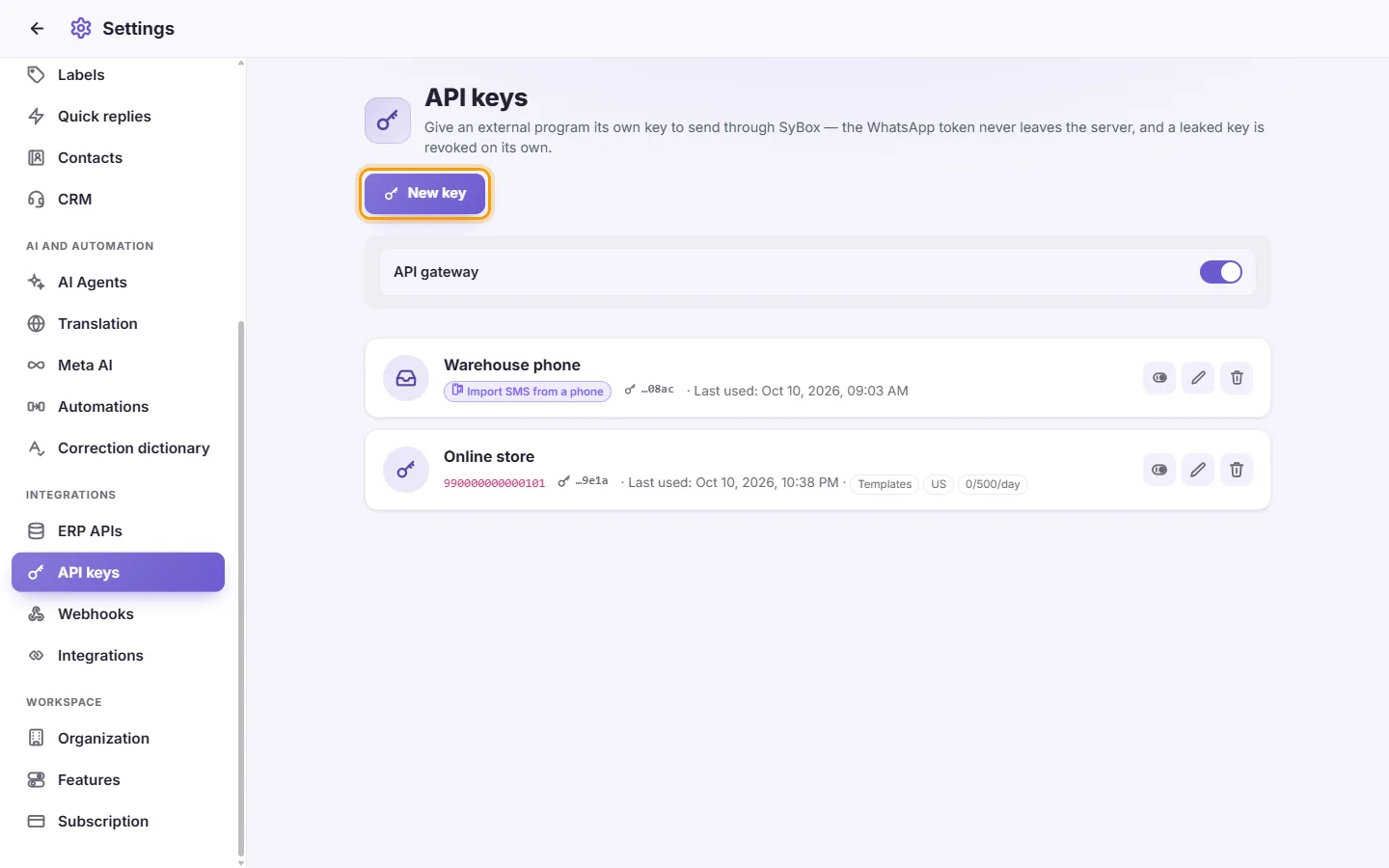
- Click "New key".
- Choose the "Key type":
- "Send through WhatsApp": the program sends messages to your customers.
- "File a case": the program opens cases in SyBox. It cannot send messages.
- "Import SMS from a phone": a phone forwards its SMS messages into the inbox.
- Fill in "Device or program name", for example "Office desktop" or "Accounting system". Give each device or program its own key.
- For a "Send through WhatsApp" key, also set:
- "Sends from": the WhatsApp number this key sends from (required).
- "Allow free-text messages": on or off.
- "Allow approved templates": on or off. At least one of these two must be on, or you see "Allow at least one of free text or templates — otherwise the key cannot send anything."
- "Allow sending media": on or off.
- "Templates" (optional): template names, separated by commas. Leave it empty to allow any template.
- "Allowed recipient countries" (optional): two-letter country codes, for example MA,FR,EG. Leave it empty to allow any country.
- "Sending allowed from" ... "to": the hours when the key may send. Leave both the same for no time limit. Times are in the workspace's local hours.
- "Daily message limit (0 = unlimited)".
- For an "Import SMS from a phone" key, set "Only contacts and customers". When it is on, an SMS from any other number stays on the phone and never reaches the inbox. Turn it off only if the phone is used for work alone.
- Click Save.
- A window shows the "Base URL" and the "API key". Copy them now. "Copy this key now — it is shown only once." Put them in your program's settings.
What the key card shows:
- The key's name, and the number it sends from (or its type badge, for a key that does not send).
- The last characters of the key, so you can tell keys apart.
- "Last used", with a date and time, or "never".
- Any limits that are on: "Free text only", "Templates only", "no media", "Templates", allowed countries, sending hours, and the daily limit shown as sent today / limit / day. An SMS key that accepts every number shows "Every number".
- Click Edit on the key's card. You can change its name, number and limits. The key type cannot be changed after the key is created, and the key itself is never shown again.
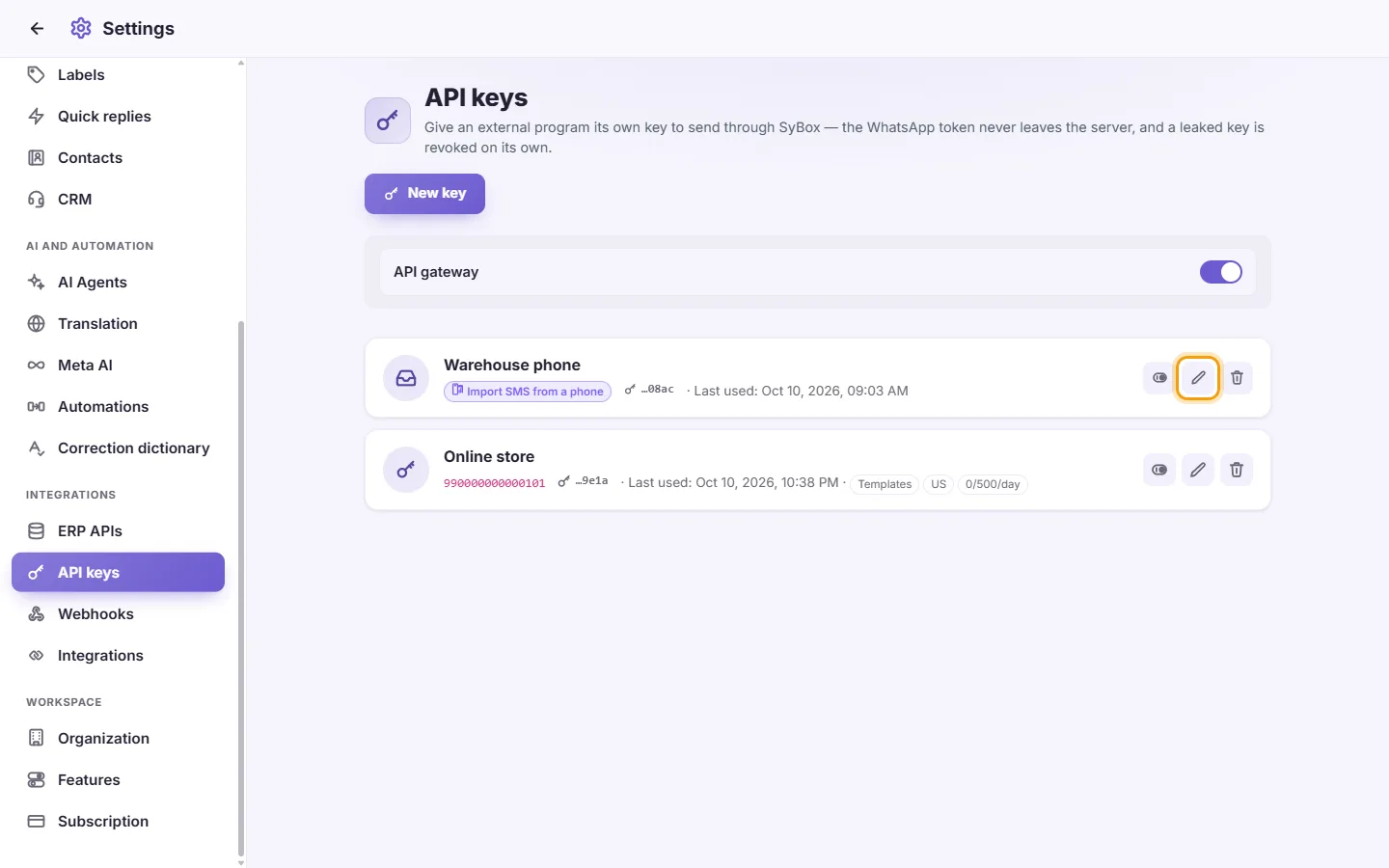
- Click Enable / Disable to stop a key for a while.
- Click Delete, then confirm: "Delete this API key? Any program still using it stops working immediately."
I lost my API key. Can I see it again?
No. It is shown only once. Create a new key, put it in your program, then delete the old key.
I think a key leaked. What do I do?
Delete that key, or disable it, right away. Only that key stops working. Your WhatsApp number and your other keys are not affected.
The "Sends from" list is empty.
The list only shows WhatsApp numbers that are connected and switched on. Connect a number first, under Settings > Messaging > Channels.
My program gets refused when it sends.
Check that the "API gateway" switch is on and the key is active. Also check the key's limits: free text vs templates, media, allowed templates, allowed countries, sending hours and the daily limit. WhatsApp's own rules still apply too. For example, free text only works within 24 hours of the customer's last message.
Can a "File a case" key also send messages?
No, on purpose. A key that files cases cannot message customers, and a sending key cannot file cases. Use a separate key for each job.
I have an old key of type "Receive from a program". Does it still work?
Yes, existing keys of that type keep working. New keys of that type can't be created any more. Use "File a case" for that kind of job instead.