Users
Updated
Where: Settings > Team and customers > Users
What it is for:
This is where you add the people who work in your workspace, decide what each person can do (permissions) and decide what each person can see (access scope).
Who can open it:
Users who have the "Manage users" permission. The workspace's main admin always has full access.
What you see in the list:
Each user shows as a card with:
- their picture or first letter
- how many permissions they have (for example "12 permissions")
- the departments they belong to, or "All departments"
- a "Main admin" badge for the workspace owner
- "Active" or "Disabled"
Each card has an Enable / Disable switch, an Edit button (pen) and a Delete button (bin). The main admin's card has no switch and no Delete button.
- Go to Settings > Users.
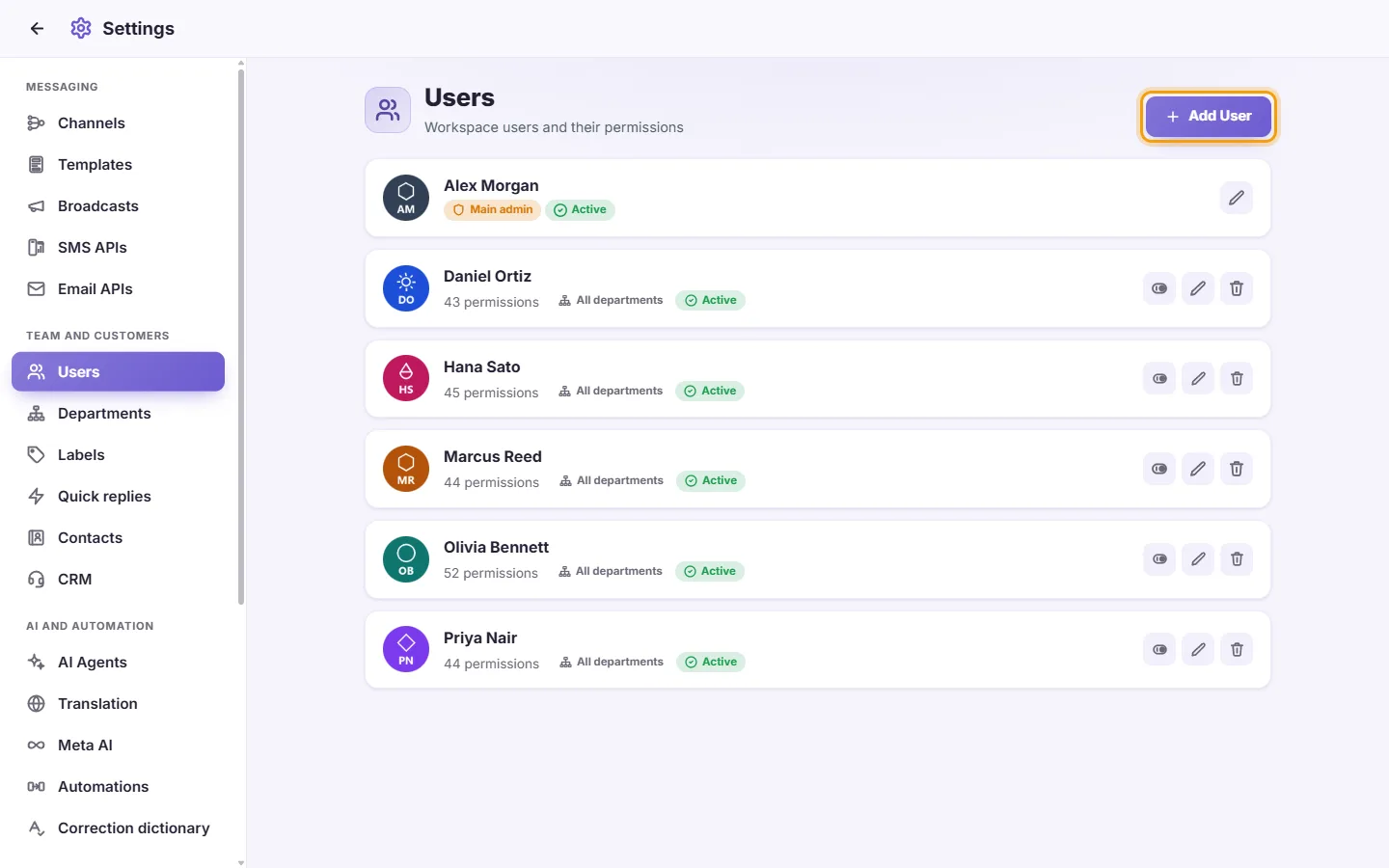
- Click "Add User".
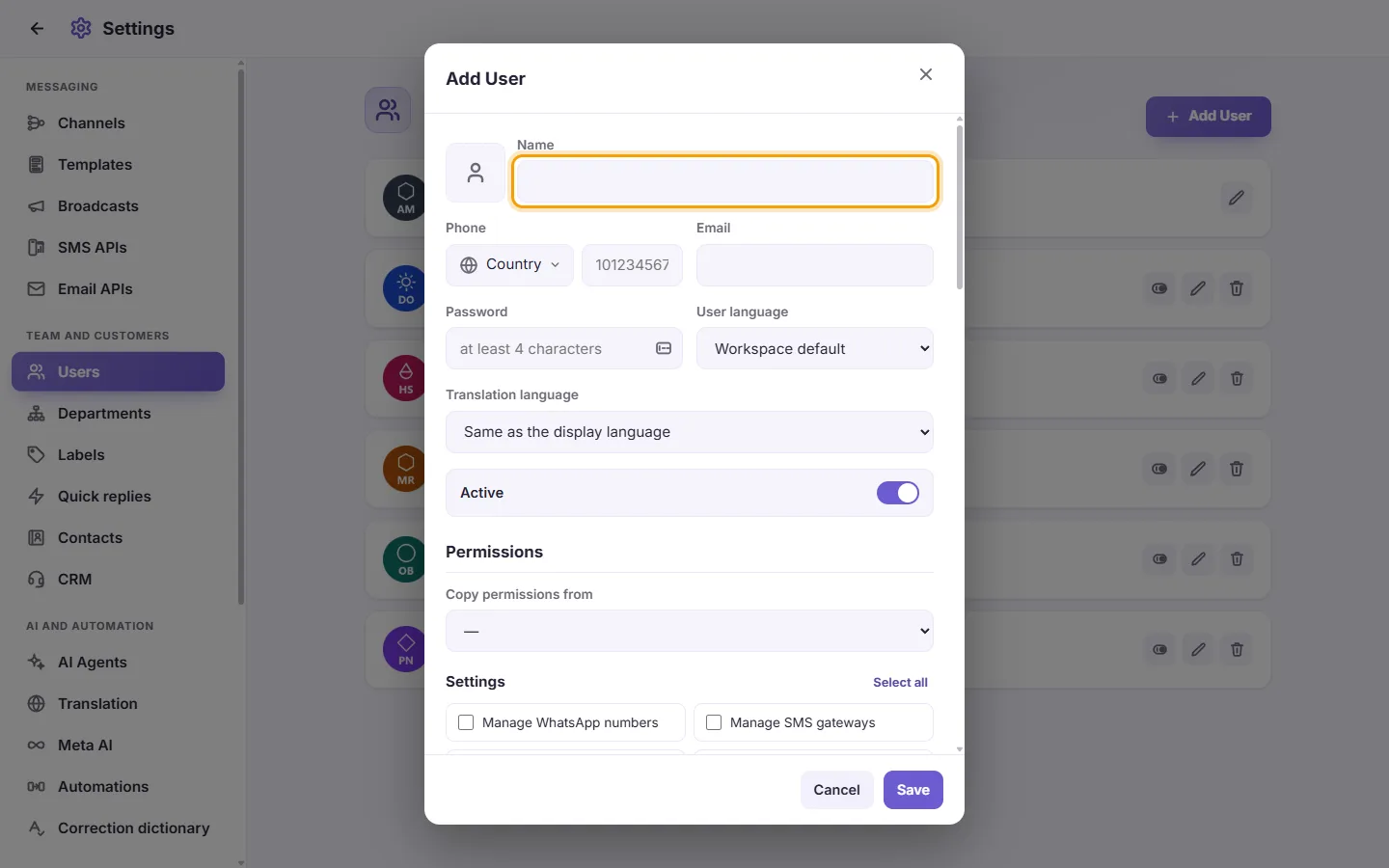
- Optional: click the square picture box to upload a photo. You can crop it before saving.
- Type the user's Name. This is required.
- Optional: enter their Phone (choose the country code first) and Email.
- Type a Password of at least 4 characters. A new user needs a password.
- Optional: pick a "User language". This is the language the screens appear in for this user. "Workspace default" uses your workspace's language.
- Optional: pick a "Translation language". This is the language messages are translated into for this user. "Same as the display language" uses their User language. It can be different from the User language. For example, someone can use the app in English but read customer messages translated into Arabic.
- Leave "Active" switched on so the user can sign in.
- Tick the permissions this user needs (see "What each permission means" below).
- Optional: set their Access scope (see "Access scope" below).
- Click "Save". The user can now sign in with this name and password.
- Click the pen (Edit) on the user's card.
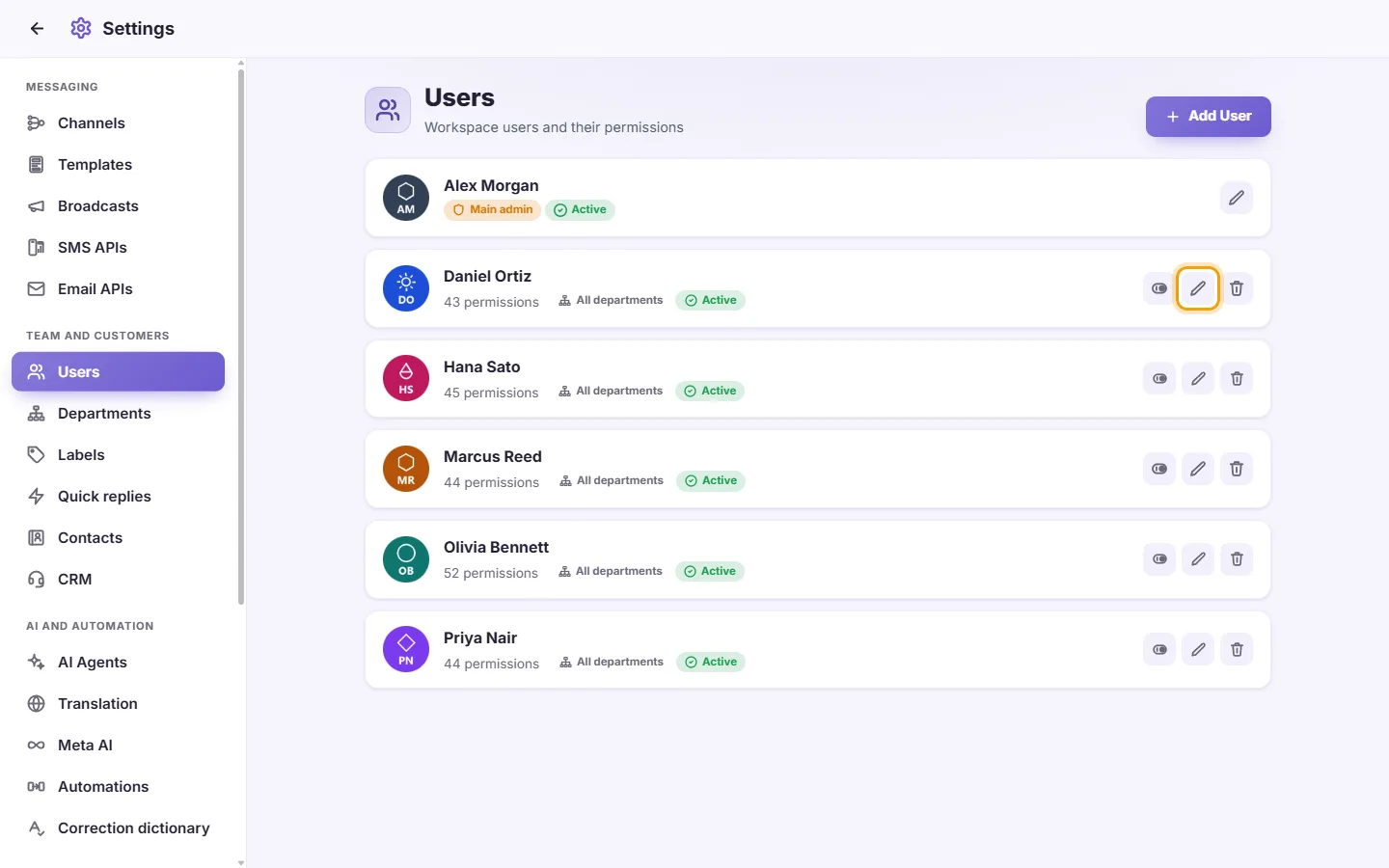
- Change what you need and click "Save".
- To keep their current password, leave Password empty ("leave blank to keep current").
Notes:
- If you change a user's password, they are signed out on their other devices.
- If you change a user's permissions or scopes, their open SyBox screen refreshes itself so the change applies straight away. They are not signed out.
- Changing only a name or picture does not affect their session.
- Open the user with Edit.
- Click the small X on the picture.
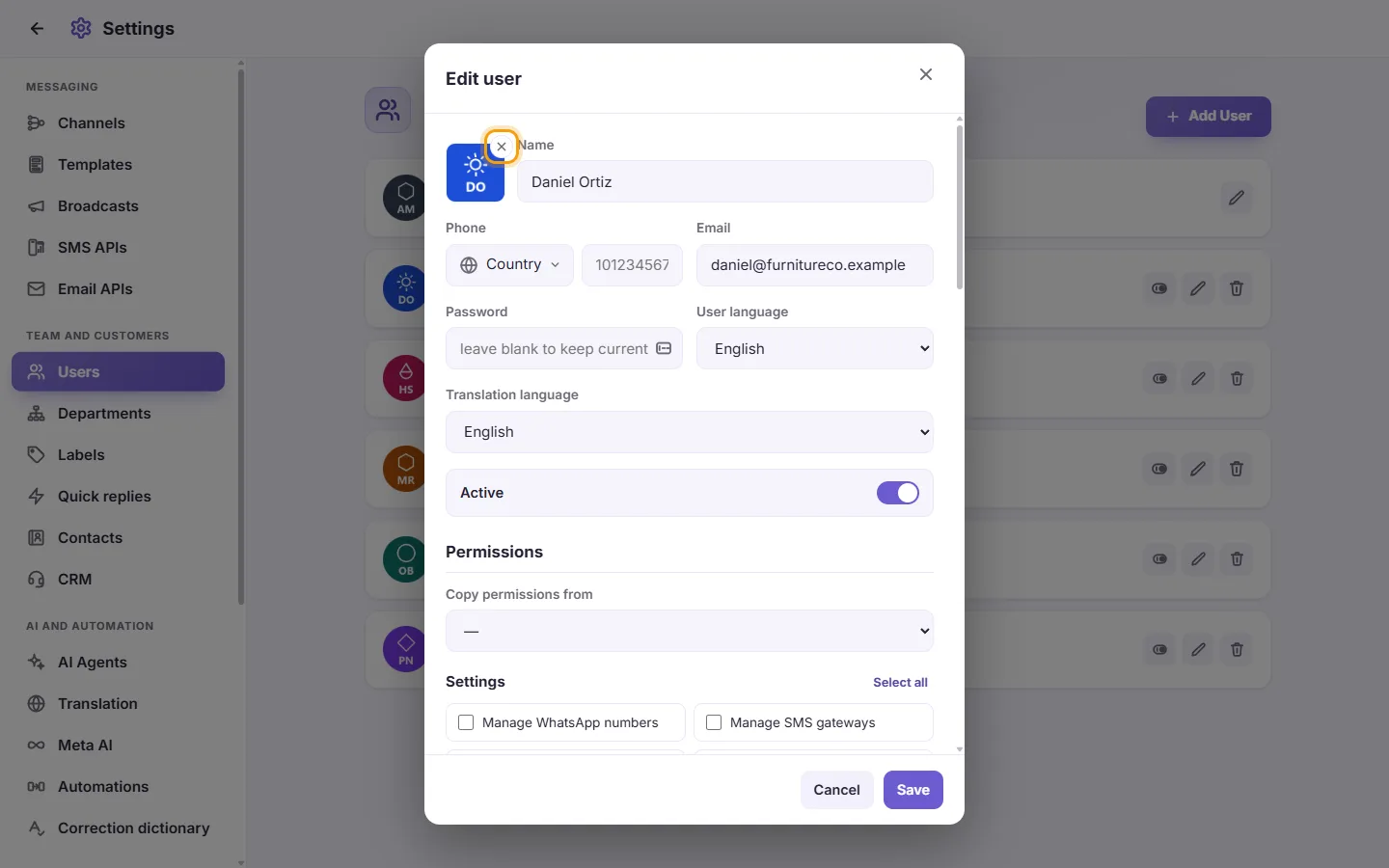
- Click "Save".
- Open the user with Add User or Edit.
- Under "Permissions", open "Copy permissions from" and pick a colleague.
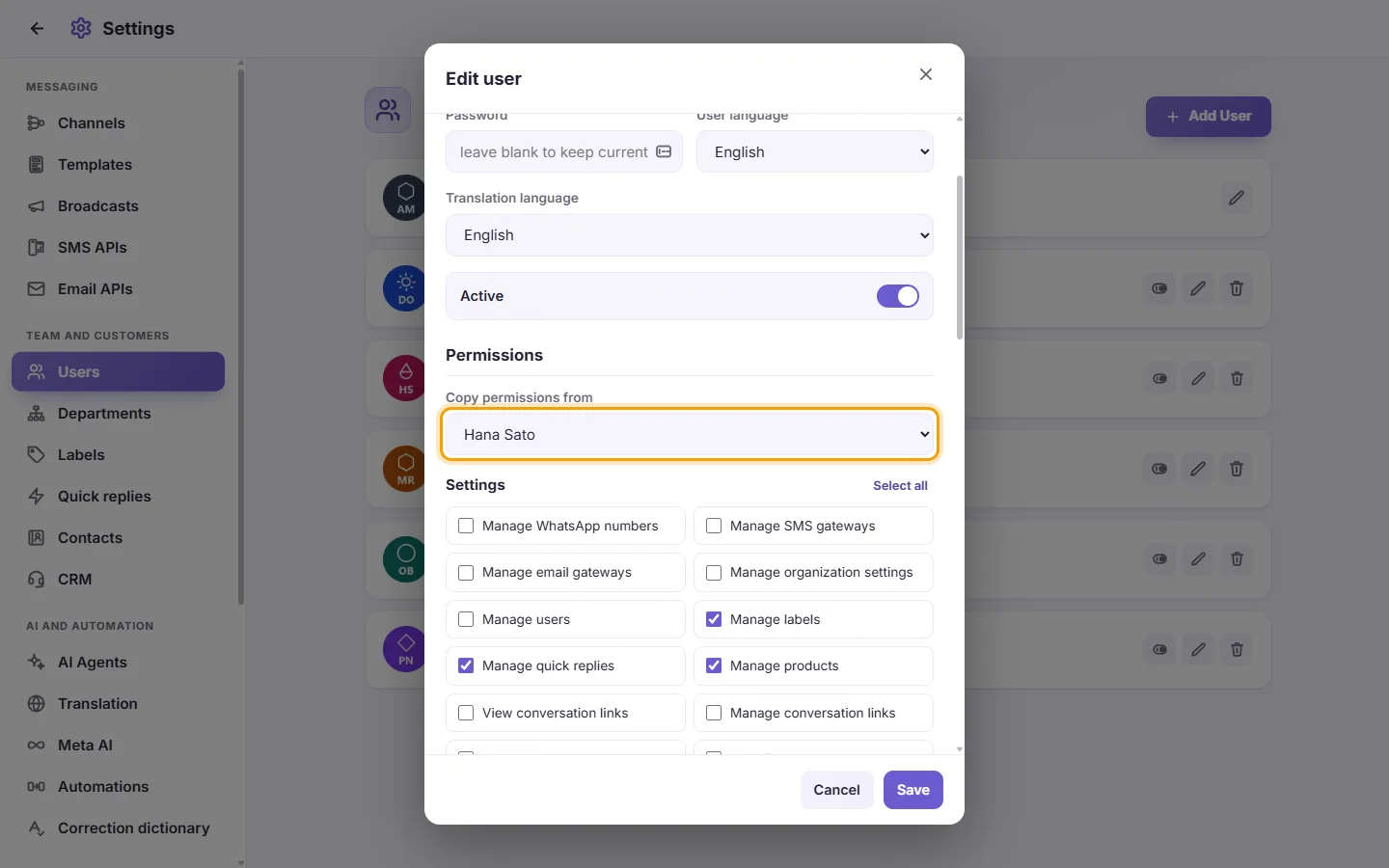
- The colleague's permissions and access scopes are copied into this form. You see "Copied the permissions of [name]. Review them, then save."
- Check the ticks, then click "Save". Nothing is saved until you click Save.
- If you picked the wrong person, choose "—" in the same list. You see "The permissions are back as they were."
The main admin does not appear in this list.
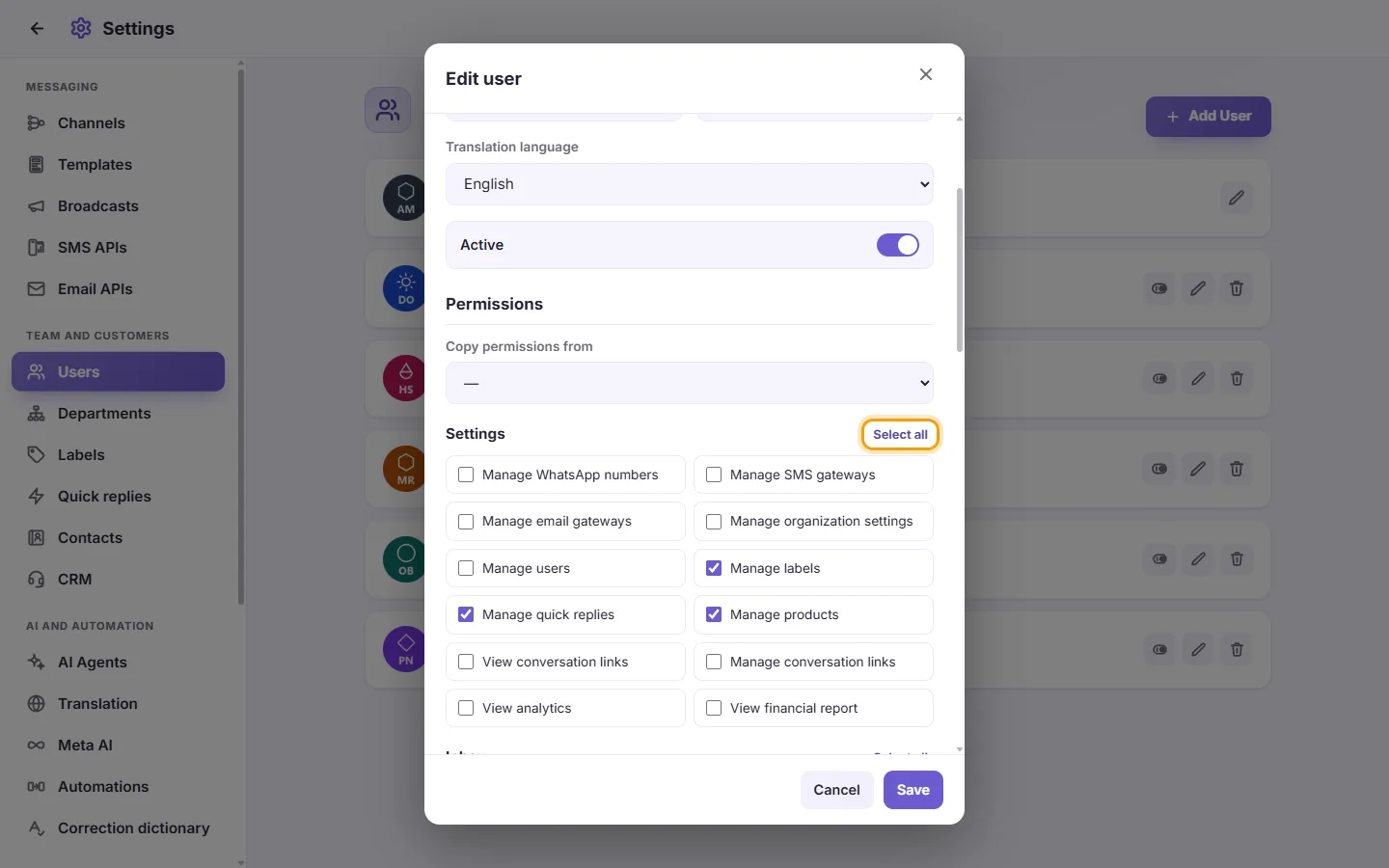
- Permissions are split into two sections, "Settings" and "Inbox". Each section has a "Select all" button that ticks every box in that section only. Click it again ("Clear all") to untick them.
- Click the Enable / Disable switch on their card. You can also open Edit and turn off "Active".
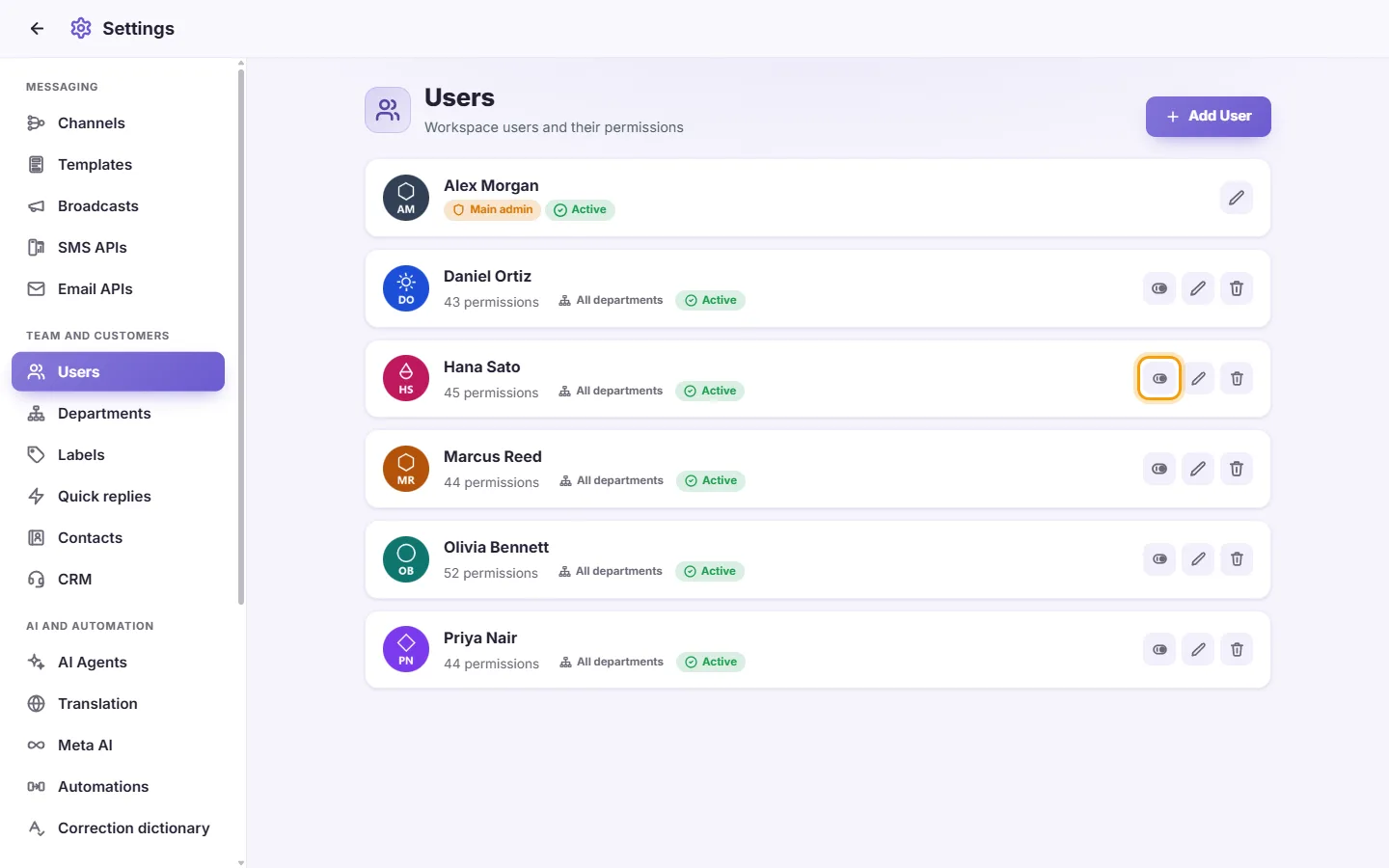
- A disabled user is signed out at once and cannot sign in. Their card shows "Disabled".
- Click the switch again to let them sign in again.
- Click the bin (Delete) on their card.
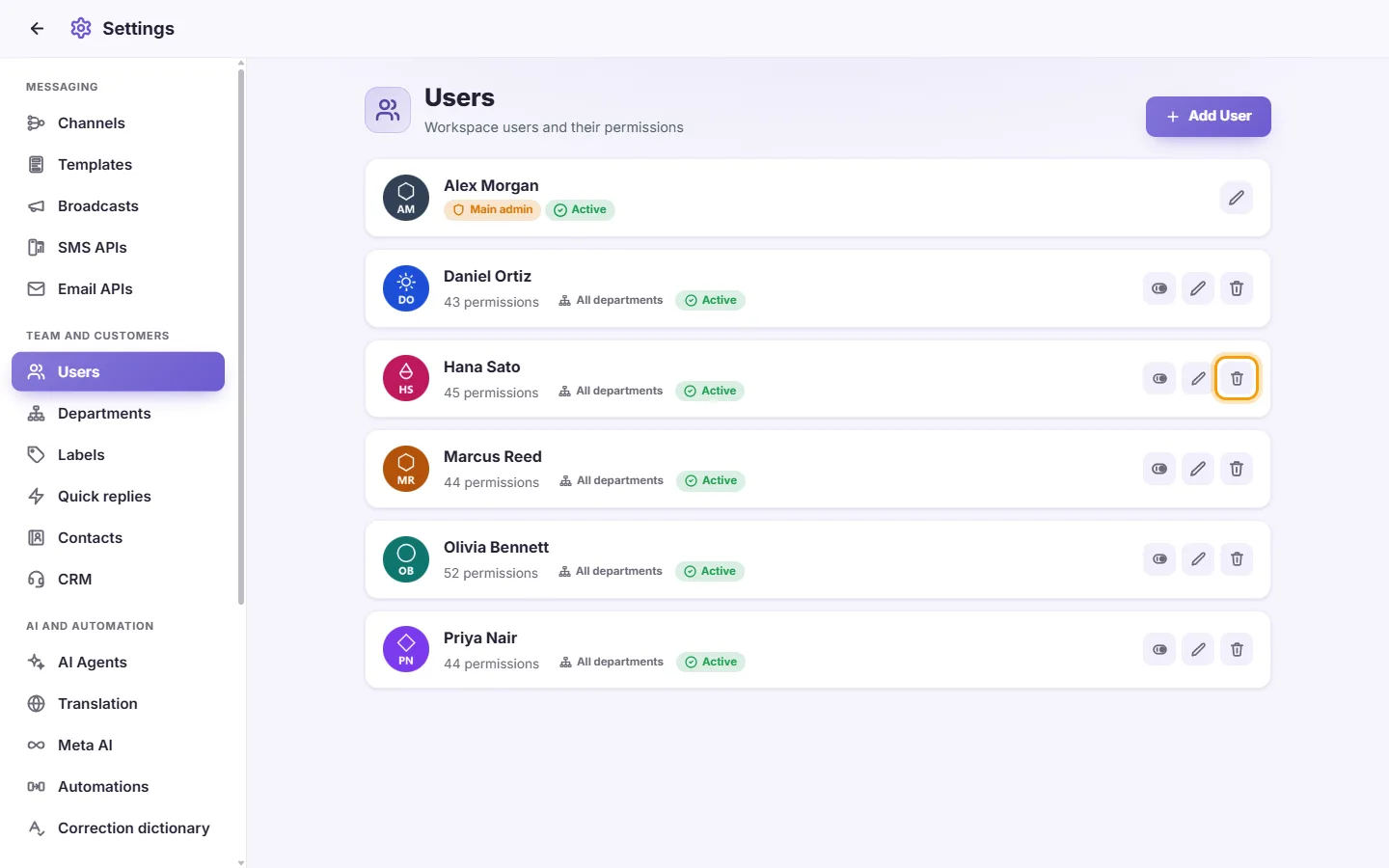
- Confirm "Delete this user permanently?".
- The user is removed and signed out everywhere. Their personal pins and favourites are removed too.
Rules and messages you may see:
- "Please enter the name": the Name field is empty.
- "Password of at least 4 characters": a new user needs a password of 4 or more characters.
- "That name is reserved for the broadcast": a user cannot be called "all", "all+" or "urgent", because these words are used to mention the whole team.
- "You can't disable your own account" / "You can't delete your own account": ask another admin to do it.
- "The main admin can't be disabled" / "The main admin can't be deleted": the workspace owner is always active.
- The main admin does not appear in the list for other managers. Only the main admin can open or edit the main admin.
- Each user can change their own name, picture, phone, email, password and languages from their own profile. Only someone with "Manage users" can change permissions, scopes or the Active switch.
What each permission and each access scope means is explained in "Settings > Team and customers > Permissions".
How do I add a new agent?
Go to Settings > Users and click "Add User". Enter a name and a password of at least 4 characters, tick their permissions, then click "Save". They sign in with that name and password.
How do I limit a user to one department?
Edit the user. Under "Access scope", next to "Departments", click "Only", tick the department, then click "Save". If they should also put customers only into that department, set "Departments they can assign" the same way.
How do I stop an agent from seeing customers' phone numbers?
Edit the user, untick "Show contact number" in the Inbox section, then click "Save".
How do I let an agent see only their own conversations?
Edit the user. Untick "See conversations assigned to others", and untick "See unassigned conversations" if you want that too. Then click "Save".
How do I limit an agent to one WhatsApp number?
Edit the user. Under "Access scope", set "Channels (read)" to "Only" and tick that number. Set "Channels (send)" the same way if they should only send from it. Then click "Save".
An employee left. Should I delete or disable them?
Disable them if you may need them again. They are signed out at once and cannot sign in. Delete them if they will not come back. Deleting cannot be undone.
I gave a user new permissions but they don't see the change.
Their open screen refreshes itself when permissions change. If they were offline, the change applies the next time they use SyBox.
I can't find the main admin in the list.
Only the main admin can see and edit their own card. Other managers do not see it.
Why can't I delete or disable myself?
This stops you locking yourself out. Ask another user who has "Manage users" to do it.
Can I give one user the same permissions as another?
Yes. In the user form, use "Copy permissions from", check the ticks, then click "Save".