Automations
Updated
Where: Settings > AI and automation > Automations
What it is for
An automation says "when a customer message matches these conditions, do these actions", with no code. Each automation is checked against every new incoming customer message. Your own replies never trigger automations.
The main switch
At the top of the screen is "Automations are running". When it is off, no automation runs at all, even ones set to "On". If you save an automation while it is off, SyBox warns you: "Saved — but automations are switched off, so no rule will run until you turn them on with the switch at the top of this screen."
The list
Each automation shows:
- its name
- a summary, for example "Conditions: 2 → Actions: 1", or "any message → Actions: 1"
- how many times it has run
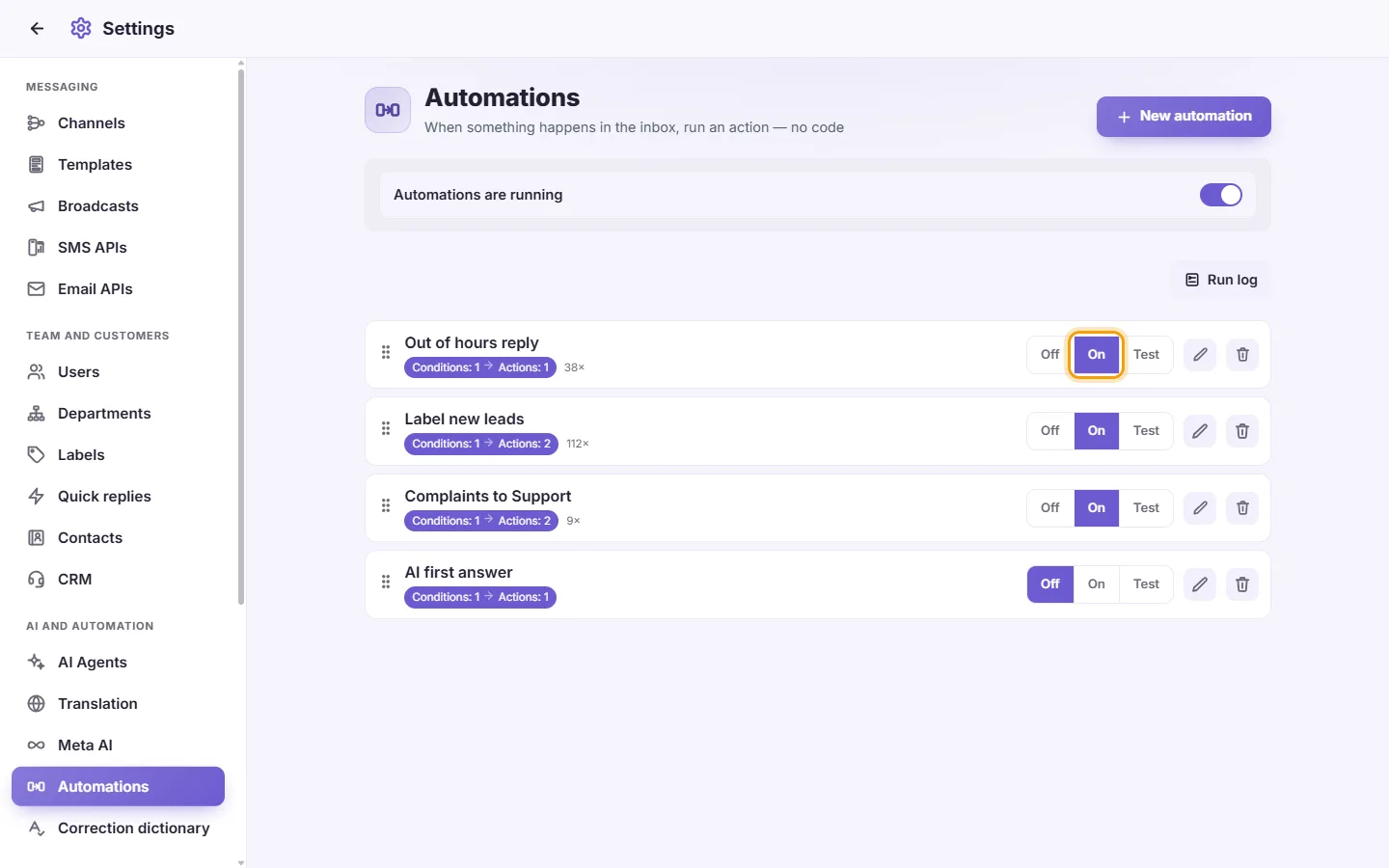
- an Off / On / Test switch
- Edit (pen) and Delete (trash).
Drag a row by its handle to change the order. Automations are checked from top to bottom.
- Go to Settings > AI and automation > Automations.
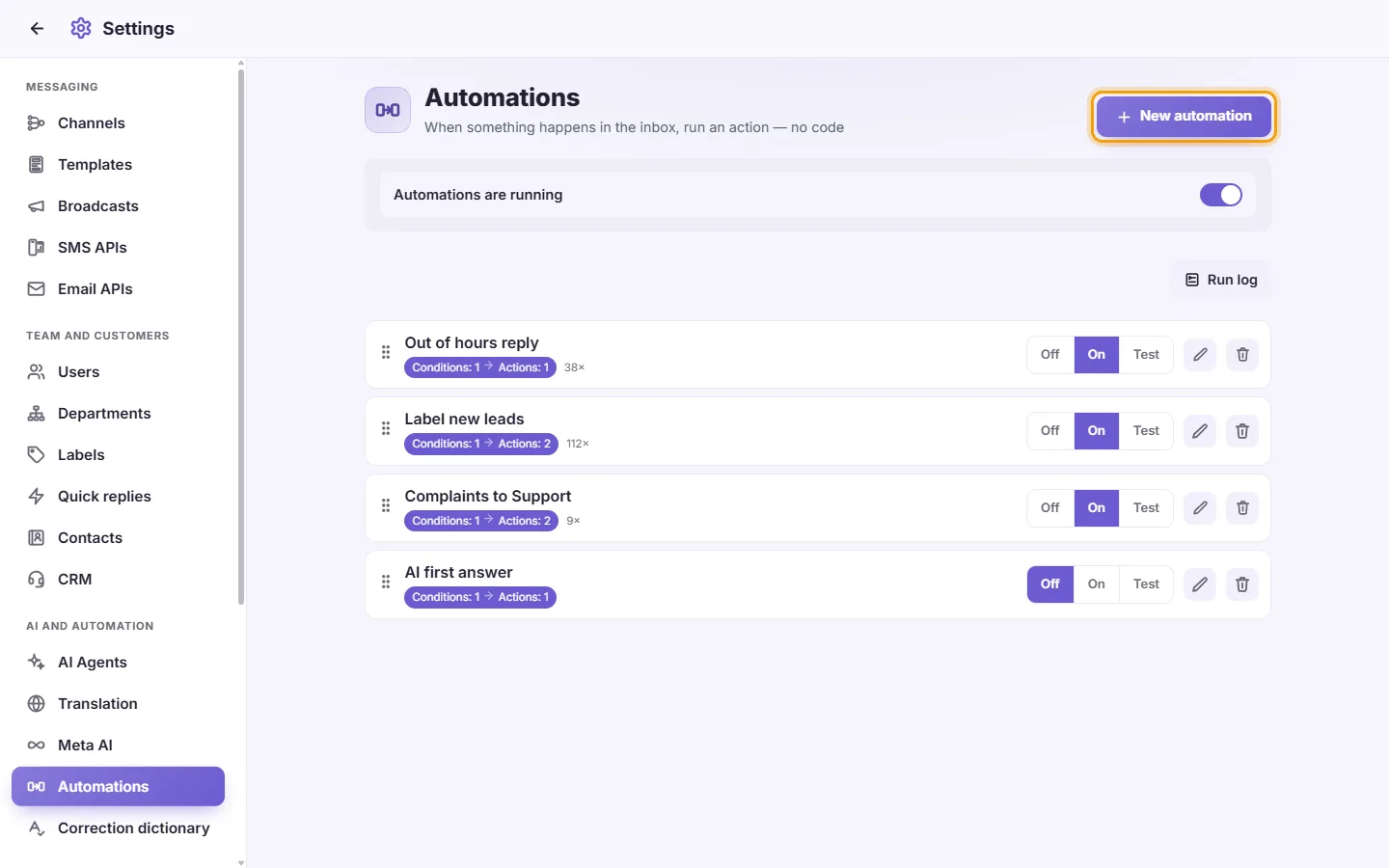
- Click "New automation".
- Type a "Name".

- Under "IF — all must match", click "Add condition" for each condition you need. Every condition must match. With no conditions, the automation matches every incoming message.
- Under "THEN", click "Add action" for each action.
- Set the "Options" (see below).
- Set "State" to Off, On or Test.
- Click Save. To leave without saving, click "Cancel".
Conditions (IF)
Most conditions can be set to "is" or "is NOT".
- "Keyword": type words separated by commas, then choose "any word" or "all words". The words are matched inside the message text, in Arabic or Latin letters.
- "New contact": the customer's very first message to you.
- "From an ad": the conversation came from an ad. Choose "Any ad" or a specific ad.
- "Channel": which channel the message came in on (a WhatsApp number, a Facebook Page, an Instagram account, a Telegram bot, email, and so on). Choose All, Only these, or All except.
- "Country": the customer's country. Choose All, Only these, or All except.
- "Department": the customer's departments. Choose All, Only these, or All except, then "any of these" or "all of these".
- "Label": the customer's labels, chosen the same way as Department.
- "Business hours": choose a country, then the time zone if that country has more than one. Set the From and To times and tick the days. The times follow that country's local clock. "is" means inside these hours; "is NOT" means outside them. At least one day must stay ticked.
Actions (THEN)
- "Add label": choose a label.
- "Add to department": choose a department.
- "Assign to user": choose a user. If that user is not allowed to see this conversation (because of its number, channel, country or department), it is left unassigned.
- "Assign in rotation": tick the users to take turns. Each new conversation goes to the next user in turn. A conversation that a switched-on user already holds stays with them. Users who are switched off, or who can't see the conversation, are skipped.
- "Internal note": write a note that only your team sees in the conversation.
- "Notify a user": choose a user and write a Title and a Message. The notification opens the message that triggered it.
- "Send a message": type the "Message to send the customer" and, if you want, attach a file with the paperclip. It is always sent from the number or account the customer wrote to. It is not sent to blocked contacts.
- "Reply with AI": choose one of your AI agents. This action only appears when you have at least one agent in AI Agents.
A picker left on "Choose…" means that action is skipped.
Options
- "Rate limit [ ] hours": when ticked, the automation runs at most once for the same customer within that many hours. The default is 24 and the minimum is 1.
- "Stop after this one matches": when this automation runs, the automations below it in the list are not checked for that message.
State
- "Off": the automation does nothing.
- "On": it runs.
- "Test": it checks messages and records in the Run log what it would have done, but does nothing for real.
Run log
Click "Run log" to see the history. Each entry shows:
- "Ran", "Blocked", "Test" or "Error"
- the automation's name and the time
- the customer
- the actions taken, with a reason when something was skipped.
Messages that matched no automation are not listed. Click "Cancel" to return to the list.
- Use the Off / On / Test switch on its row. It saves right away.
- Click the trash on its row, then confirm "Delete this automation?".

Messages you may see
- "Tick at least one user to rotate between." An "Assign in rotation" action has no users ticked.
- "Choose a country for the business hours — they run on that country's local time (and, in a country with more than one time zone, choose the zone)." A Business hours condition needs a country before the automation can be set to On or Test. Off always saves.
My automation never runs.
Check that:
- "Automations are running" at the top is on
- the automation's State is "On", not "Test" or "Off"
- an automation higher in the list doesn't have "Stop after this one matches" ticked and catch the message first
- "Rate limit" isn't blocking it.
Then open "Run log" to see what happened.
How do I make the AI answer only on one WhatsApp number?
Create an automation with a "Channel" condition set to "Only these" with that number, and the action "Reply with AI" with your agent.
How do I reply automatically outside working hours?
Add a "Business hours" condition set to "is NOT", choose your country, hours and days, and add a "Send a message" action. To avoid repeating the message, tick "Rate limit".
How do I test an automation safely?
Set its State to "Test". It records in the Run log what it would have done, without changing anything or sending anything.
Does the order of automations matter?
Yes. They are checked from top to bottom, and an automation with "Stop after this one matches" stops the ones below it. Drag rows to reorder them.
Can I distribute new leads between my team?
Yes. Use the "Assign in rotation" action and tick the users who should take turns.