Chatwoot
Updated
Where: Settings > Integrations > Chatwoot
What it is for:
If your team already works in Chatwoot, SyBox can mirror your conversations into it. Every message that arrives on the numbers you pick appears in your Chatwoot inbox, and the replies your agents write in Chatwoot go out to the customer from SyBox, over WhatsApp. SyBox stays the gateway: the number stays connected here and the history stays in SyBox.
Before you start, in Chatwoot: create an inbox of the "API" kind. You will copy from it its inbox identifier (Inboxes → your API inbox → Configuration) and its Webhook Secret (the same inbox's Settings tab), and from an administrator's Profile settings their access token.
- Go to Settings > Integrations > Integrations ("Mirror this workspace's conversations into a helpdesk you already run.").
- Click "Connect Chatwoot".
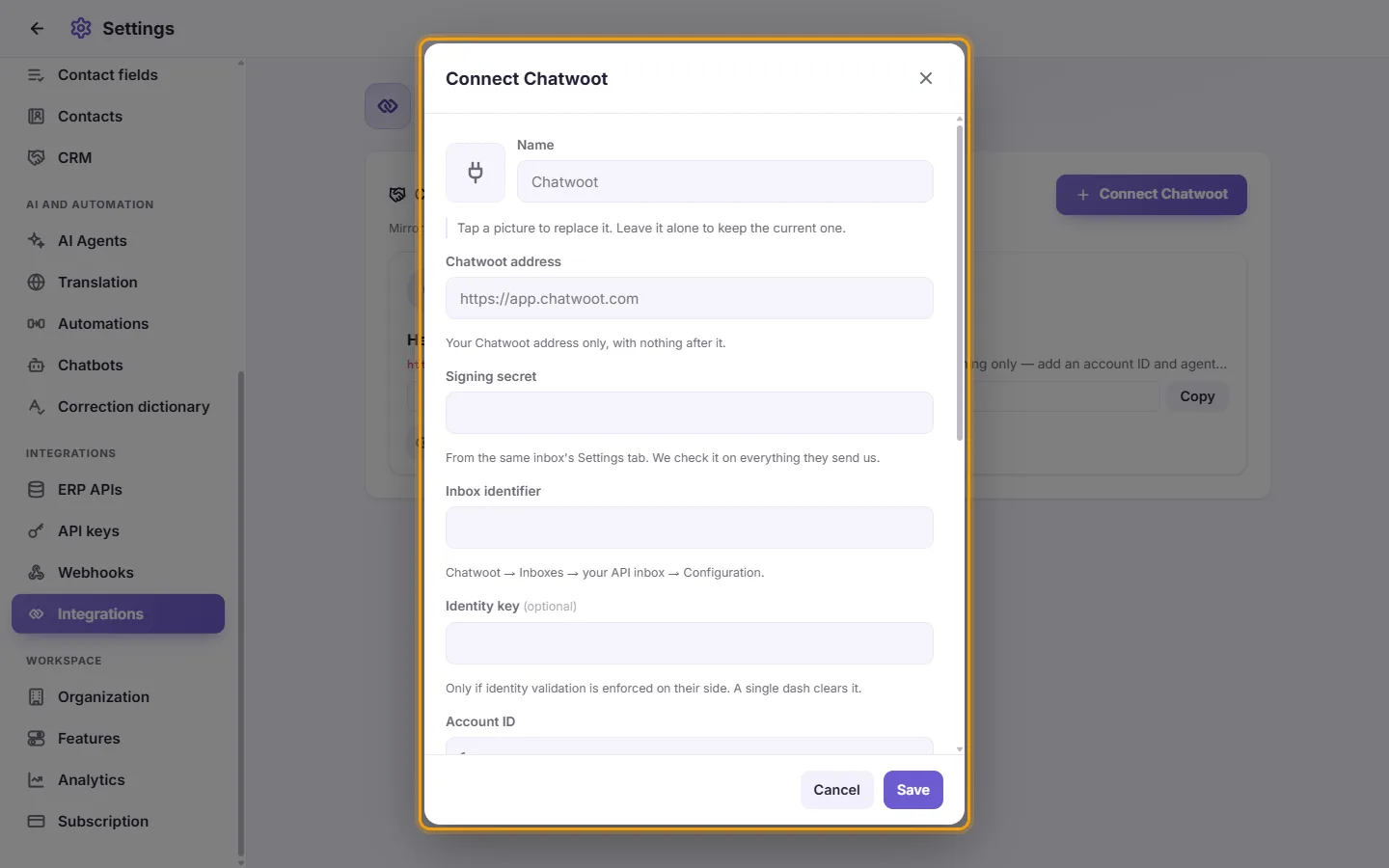
- Give it a "Name" (and a picture, if you want), then fill in "Chatwoot address" (your Chatwoot address only, with nothing after it), the "Signing secret" (the inbox's Webhook Secret) and the "Inbox identifier".
- "Identity key": only if identity validation is enforced on your Chatwoot. Leave it empty otherwise.
- Fill in the "Account ID" and the "Administrator access token". SyBox tries the token before saving, points the inbox's webhook at SyBox for you, and shows your own replies in Chatwoot under the right user.
- Under "Numbers", keep "All numbers" or tick the lines to mirror.
- Click Save.
Without the account ID and the token, the card says "Incoming only — add an account ID and agent token to mirror your own replies": customers' messages reach Chatwoot, but replies sent from SyBox do not show there.
Does an internal note in Chatwoot reach the customer?
No. Private notes in Chatwoot stay in Chatwoot; only real replies go out to the customer.