How do I make a chatbot in SyBox?
Updated
In SyBox, this is done in Settings > AI and automation > Chatbots.
How to make a chatbot
- Go to Settings > AI and automation > Chatbots and click "New chatbot".
- Type its "Name", and set "Wait for an answer (minutes)" (60 by default).
- Each step is a card ("Step 1 · starts here", "Step 2" and so on). Choose its "Kind": "Buttons (up to 3)", "List (up to 10)", "Question" or "Last message", and type its "Message". A list also has its "List button (20 letters)".
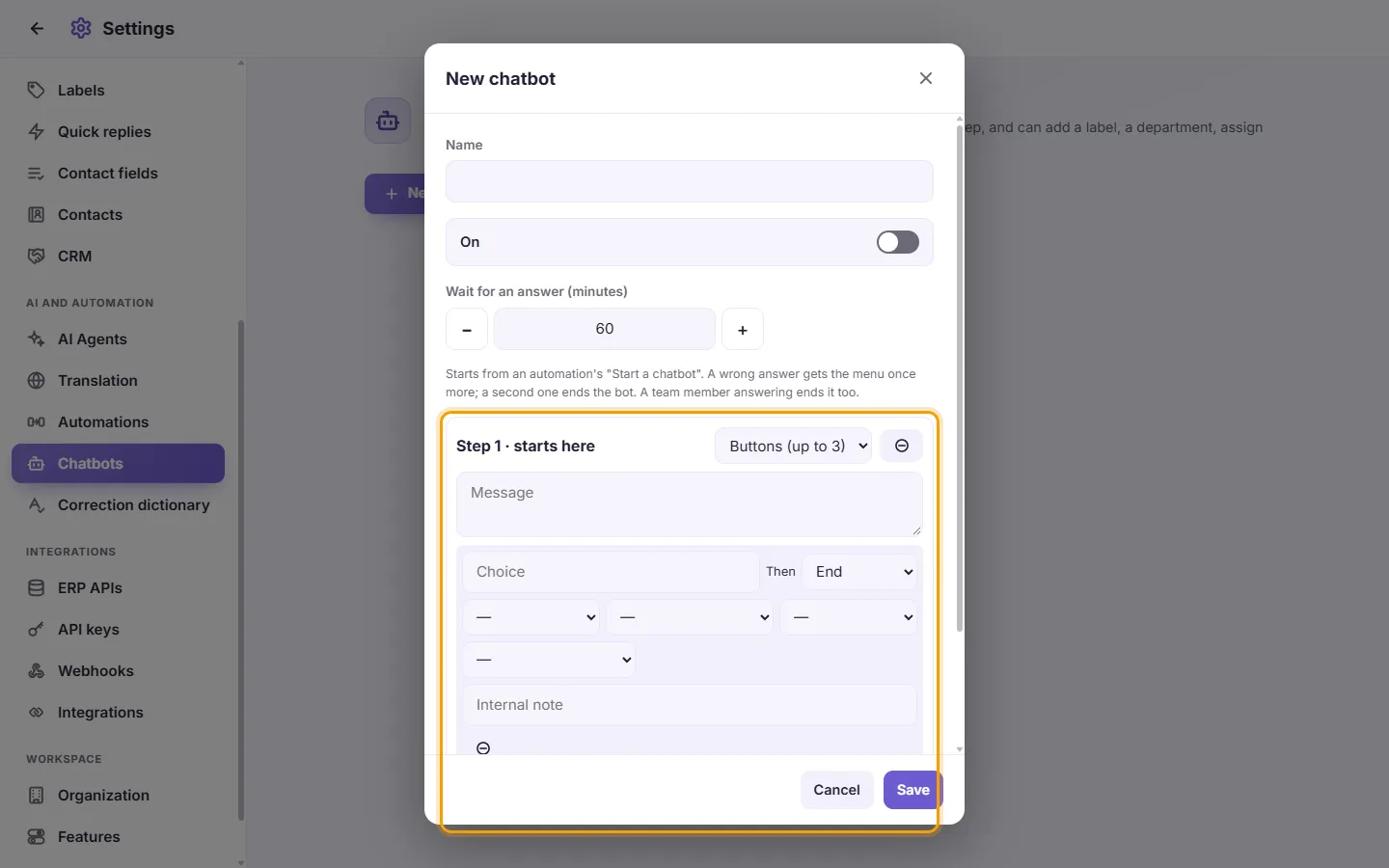
- For each choice, type the "Choice" (and an optional "Description (optional)" in a list), and in "Then" choose "End" or the next step. A choice can also "Add label", "Add to department", "Assign to agent", "Reply with AI" or add an "Internal note". "Add a choice" and "Add a step" add more.
- A "Question" step asks the customer to type an answer; choose where to keep it in "Save the answer in" (a contact field).
- Switch it "On" and click Save.
- In Settings > AI and automation > Automations, add the action "Start a chatbot" to the automation that should start it (for example a "Keyword" or "New contact" rule).
How it runs:
- On WhatsApp the customer gets real buttons and lists. On Messenger, Instagram, Telegram and Live Chat they get a numbered menu and answer with the number.
- A wrong answer gets the menu once more; a second one ends the chatbot. Words such as "agent", "stop" or "0" end it too, and so does a team member answering.
- While a chatbot waits for an answer, no automation or AI agent answers the customer.
If a chatbot is not complete, saving says "This chatbot cannot run as written: check every step has its message, every button its words, and every 'next' a step."
More about Chatbots.