How do I choose the size of the message box in SyBox ("Large message box")?
Updated
In SyBox, this is done in Inbox > Appearance and language. On a computer: Click your picture at the bottom of the left bar and choose "Preferences". Under "Typing", switch "Large message box" on or off.
How to choose the size of the message box ("Large message box")
- On a computer:
- Click your picture at the bottom of the left bar and choose "Preferences".
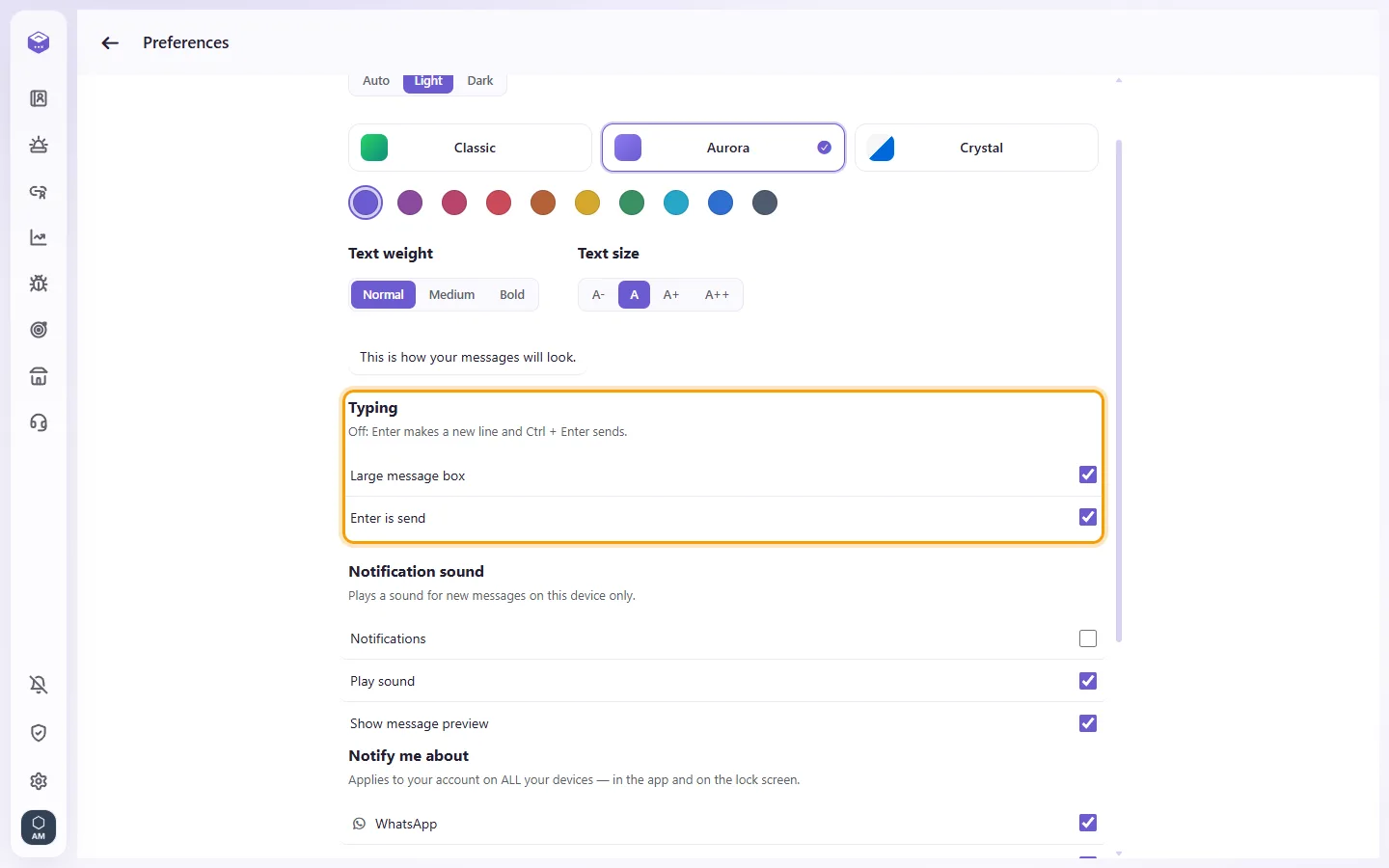
- Under "Typing", switch "Large message box" on or off.
- On (the default): the box is three lines tall and grows as you write, with its buttons on a row under it.
- Off: the box is one line, as on a phone.
It changes at once, and it is your own choice, kept for your user on every computer.
Questions
What is the difference between Settings and Preferences?
"Settings" (the gear on the left bar) is for the whole workspace: channels, users, AI agents, automations and the rest. A change there applies to everyone on the team, so only users with the permission see it. "Preferences" (click your picture, then "Preferences") is your own: light or dark mode, text size and weight, sounds, which messages notify you, and how you type. A change there applies to you only; your colleagues keep theirs. The one exception is the theme (Classic, Aurora or Crystal): it is chosen in Preferences, but only by users allowed to change the organization's settings, and it applies to the whole workspace.
More about Appearance and language.