How do I make a limited-time offer template in SyBox?
Updated
In SyBox, this is done in Settings > Messaging > Templates.
How to make a limited-time offer template
- Click "Create template" and in "Kind", choose "Limited-time offer". The category becomes Marketing.
- Type the "Offer banner (16 letters)", and tick "Count down to the offer's end" to show a countdown.
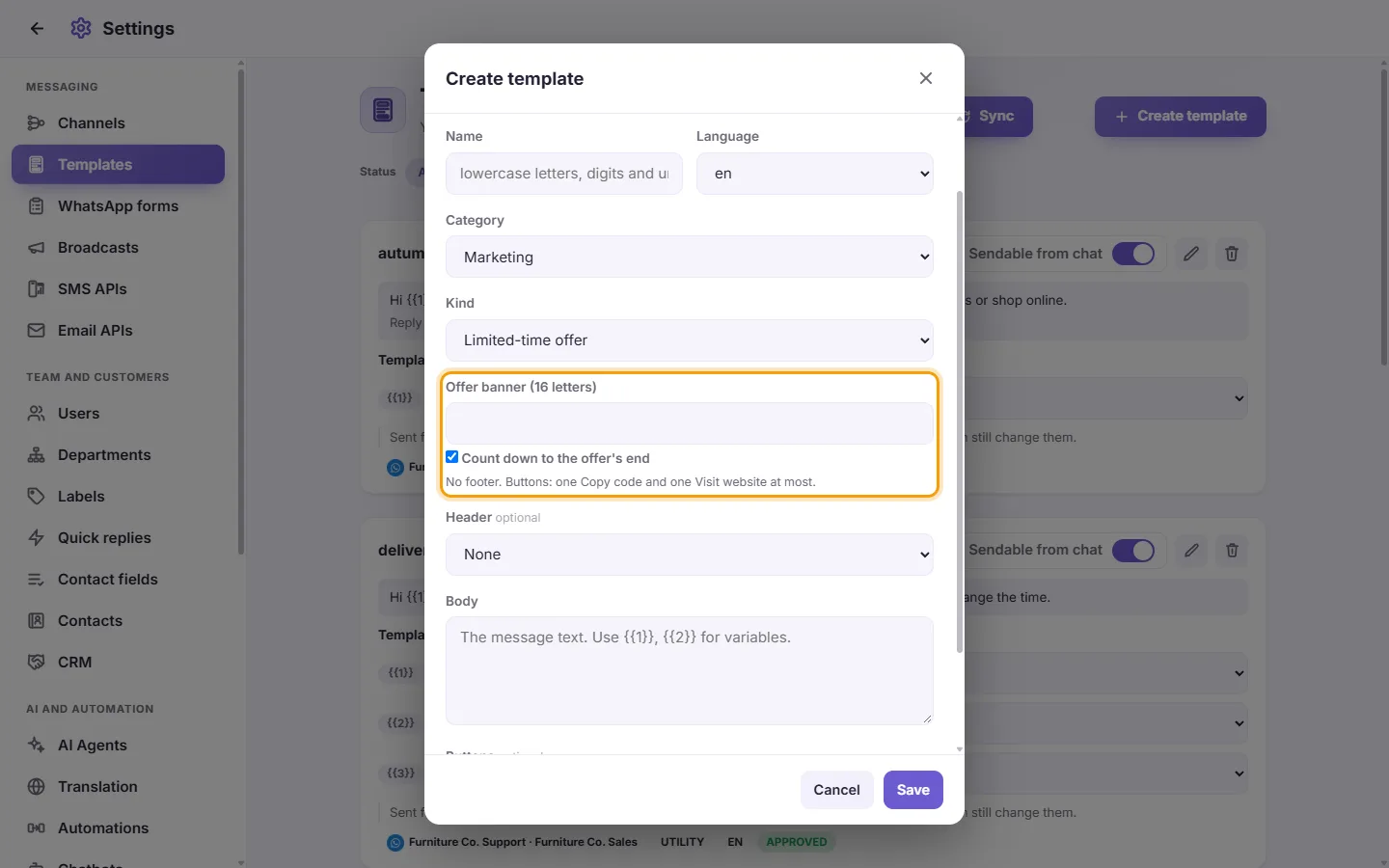
- The header can be an image or a video. Write the body. An offer has no footer.
- Buttons: one Copy code and one Visit website at most.
- Click Save.
When you send it from a conversation or a broadcast, you fill in the "Coupon code" and "Offer ends" (a date and time in the future).
Questions
Why was my marketing template not sent to a customer?
The customer pressed "Stop promotions" in WhatsApp. SyBox records it, the contact panel shows "Stopped promotions in WhatsApp", and marketing templates are no longer sent to them: "This customer pressed 'Stop promotions' in WhatsApp, so marketing templates are not sent to them." Utility and verification code templates still go. In a broadcast these customers are counted as "Skipped (stopped promotions)".
Why can't I see my template in a conversation?
It must be APPROVED and "Sendable from chat" must be on. Click Sync to get the latest status.
Why is there no Edit button on my template?
WhatsApp only allows editing templates that are Approved, Rejected or Paused. A template that is under review cannot be edited.
More about Templates.