How do I use the advanced filter and save filters in SyBox?
Updated
In SyBox, this is done in Inbox > The conversation list.
How to use the advanced filter and save filters
- Open "More filters" and choose "Advanced filter…".
- Tick what you want: "Status" ("Unread", "Awaiting reply", "Starred", "Favorites", "My conversations", "One message only", "From ads"), "Assigned to" ("Me", "Nobody" or a colleague), "Channels", "Labels", "Departments", "Contact fields", and "Last message between" two dates.
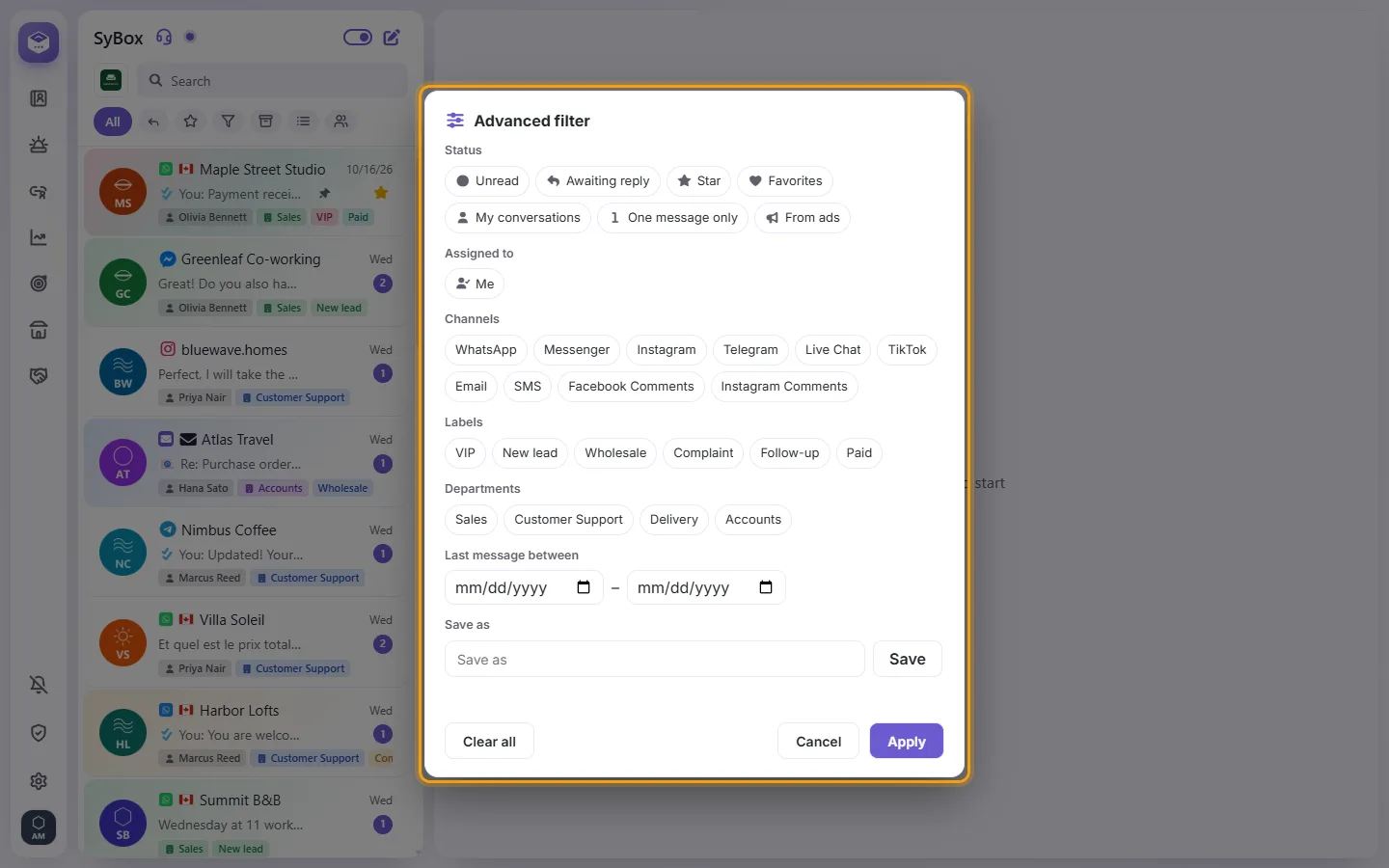
- Click "Apply". The list shows only the conversations that match every group you used; inside a group, any ticked choice matches.
- To keep it, type a name in "Save as" and click "Save". It is saved and applied.
Your saved filters are listed in "More filters", under "Advanced filter…": one tap applies one, a second tap turns it off. In the advanced filter, "Saved filters" loads one by its name, and ✕ deletes it. Saved filters are your own (up to 30); colleagues have theirs. "Clear all" empties the choices. If nothing is ticked: "Pick at least one thing to filter by."
Questions
How do I mark a conversation as unread?
There is no "Mark as unread" option. A conversation is marked as read when you open it or mark it as finished.
Is there an "Unread" filter?
No. Unread conversations show a number on their row. Use "Awaiting reply" to find conversations where the customer wrote last.
What is the difference between Star and Favorites?
A star on a customer conversation is shared, so the whole team sees it. Favorites (the heart) and Pin are personal: only you see them.
If I delete a conversation, is it only deleted for me?
No. Delete conversation removes it for the whole team on every device, so use it with care. To just tidy your view, use Archive or Temporary archive.
A notification arrived, but I can't find the new conversation in my list.
Your list is probably on a filter, such as Star or Favorites. Click "All" and the conversation will be there.
More about The conversation list.